
BDP Technical Administrator help
This guide is for the technical administrator(s) your firm has nominated to manage your BDP configuration. If you’re setting up SMS messaging for the first time, start with **Activating SMS** below.
On this page:
- What SMS can do
- Activating SMS
- Pricing
- Setting up an automated SMS rule
- Example: message to Applicant
- Example: message to Viewing Agent
- Sending a manual SMS
- Example: Send SMS from Contact record
- Simple Troubleshooting
What SMS can do
BDP can send one-way automated SMS messages via the rules engine – for example, confirming a viewing time to an applicant. Replies are not supported: the recipient’s SMS confirms this is a No Reply message, so recipients are told upfront not to reply rather than sending a reply that would go unread, example below.
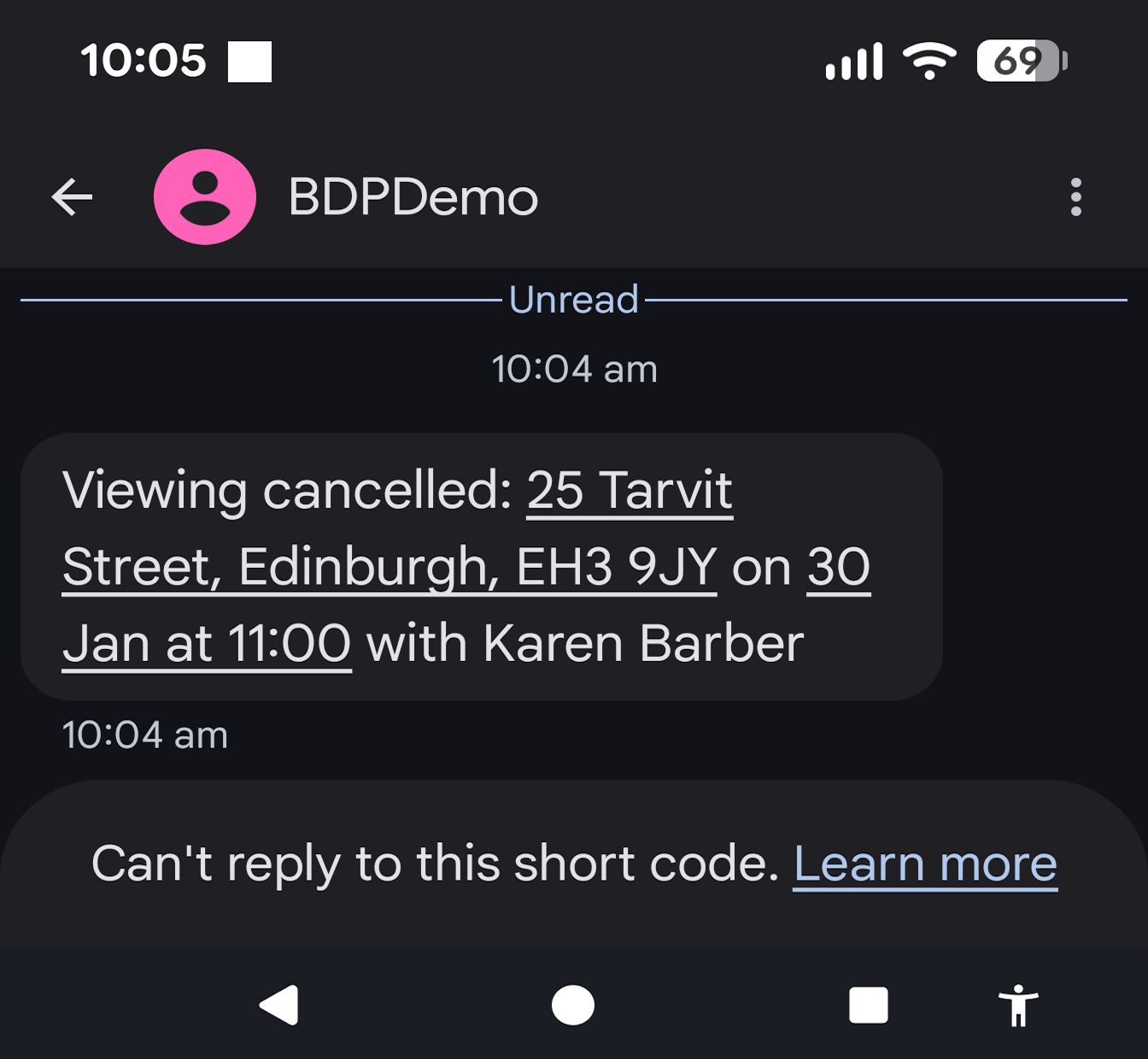
If your firm has SMS enabled, your users can also send SMS messages manually (see Sending a manual SMS below), separately from the automated rules engine.
Activating SMS
SMS is disabled by default and must be activated for your firm’s account before you can use it.
To activate SMS:
- Decide on a from name – this is what recipients will see as the sender. You’re restricted to 11 alphanumeric characters (e.g. ESPCteam, SmithLaw, ABCEstates).
- Email support with your chosen from name and ask us to activate SMS on your account.
- We’ll confirm once it’s live – you can then start building SMS rules or sending manual messages.
Pricing
Why 10p per credit?
You may see UK mobile contracts advertise “free” texts, or see online SMS providers quoting headline rates as low as 3.5p per credit. It’s worth knowing what sits behind those numbers before comparing:
- Headline low rates are typically introductory offers or bulk-volume pricing – often requiring purchases of 100,000+ credits. Most firms using BDP send in the region of 100–200 credits a month, a volume at which bulk-rate pricing isn’t available from any provider.
- The 10p rate reflects more than the message itself – it includes the infrastructure to send SMS reliably from a business rules engine (not a personal phone), delivery tracking, from-name registration and management, and ongoing support if something doesn’t send correctly.
Setting up an automated SMS rule
Automated SMS rules are configured in the Configuration menu, using the same Business Rules widget as email rules.
- Go to Configuration → Configuration → Business Rules widget and click CLICK HERE TO ADD A NEW RULE to add a new rule.
- In the Events drop-down, choose the event that should trigger the message (e.g. Viewing confirmed).
- In the Action select the option Send Email
- Select the applicable Target of the SMS message (e.g. Email Applicant).
- Give the rule a clear, memorable name – spaces are allowed (e.g.Viewing Confirmed – SMS to Applicant).
- Optionally set a Delay/Advance in hours. A negative number (e.g. -2) sends the message that many hours before the event; a positive number sends it that many hours after. You can also use 0.5 for half hour etc.
- Enter your message in the SMS content field. Placeholders use the same double-curly-bracket syntax as email templates – see the full placeholder reference for all available fields.
- Select SMS Priority as the send mode. This determines that BDP will attempt to send by SMS first, rather than defaulting to email.
- Add a fallback email template (message, email from, email subject) – this is sent instead if the recipient doesn’t have a mobile number recorded in BDP.
- Save the rule. We recommend sending yourself a test message via a dummy event before relying on it live.
Example: message to Applicant
Confirms appointment date, time, location, and viewing contact details.
|
1 |
Viewing confirmed: {{ propertyDetails.formatAddress }} on {{ bdDate (action.actionDate,"l, jS F Y") 1 }} at {{ bdDate (action.actionDate,"H:i") 1 }} with {{ vContactData.firstName }} {{ vContactData.lastName }} tel {{ vContactData.mobile }} |
Example: message to Viewing Agent
Confirms the Applicant’s name and number, plus appointment location, date and time.
|
1 |
Viewing confirmed: {{ propertyDetails.formatAddress }} on {{ bdDate (action.actionDate,"l, jS F Y") 1 }} at {{ bdDate (action.actionDate,"H:i") 1 }} with {{ aContact.groupSalutation }}, tel {{ aContact.primaryContact.mobile }} |
Sending a manual SMS
If SMS is enabled on your account, users can send a one-off SMS outside the rules engine – useful for ad hoc updates that don’t warrant a standing rule. Recipients must have a Mobile number added to their contact details.
Example: Send SMS from Contact record
- From Contact page click on the Send SMS button

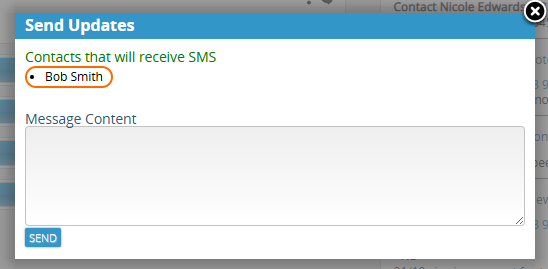
- SMS message dialog will popup and display who the message will be sent to
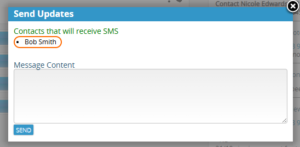
- Type your message and click the Send button
- A copy of the message will appear in the contacts Activity Log and the property’s Property Log as “SMS Sent”
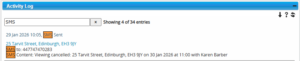
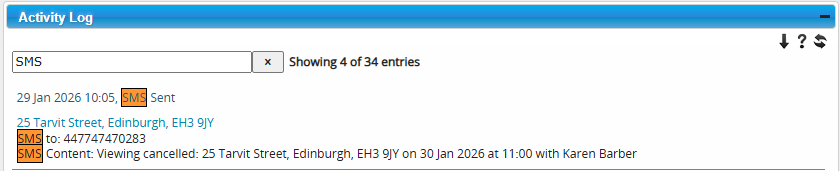
SMS can manually be sent from a property record, including bulk SMS to contacts using the Property Contacts widget.
Simple Troubleshooting
An SMS didn’t send. Check that the recipient has a valid mobile number recorded against their contact record in BDP. If no mobile number is present, the fallback email template will have been sent instead.
A placeholder appeared as literal text (e.g. { vContactData.mobile }}) instead of the actual value. This usually means the placeholder name has not been enclosed with the {{}} correctly. Check against the full placeholder reference and compare carefully against the working examples above. Check for typos and incorrect spaces in placeholder name if information is not being included in the SMS message, or that you are using the correct placeholder.
The message was cut short or split into multiple charges. Messages are charged in 160-character blocks up to a maximum of 520 characters (4 credits). Shorten your message or review whether all placeholder content is necessary, for exampl can you use “Sept” for “September”.
Still stuck? Contact support with as much information as possible including the rule name (or recipient/date if a manual send) and we’ll take a look.
 Failed Emails and Deferred Emails