
Ordering and Removing For Sale Boards and Stickers
You can order new or replacement for sale boards, order stickers, and request sign removals directly from the Management widget.
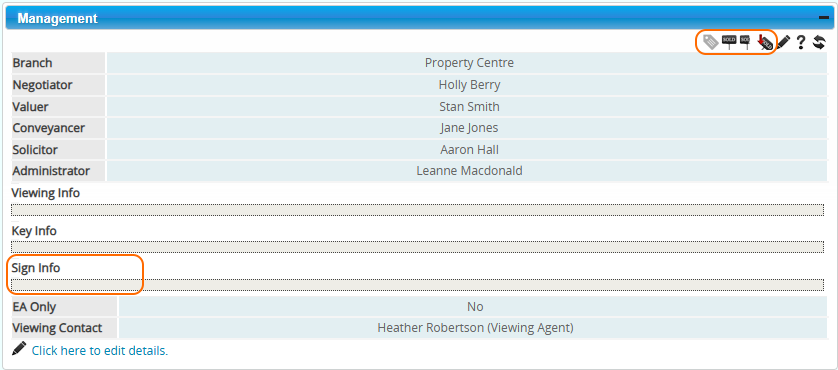
To order a sign or sticker, or request a sign removal
- Check that the information in the Sign Info field is correct, including the sign type, position, text and access details.
- In the Management widget, click the Order New Sign icon. (If already ordered, BDP will notify you in the confirmation pop-up)
- Click OK to confirm and send your request to your configured for sale board operator.*
Available requests
You can use the Management widget to:
- Order new or replacement for sale boards.
- Order Under Offer, Sold, Sold STC and Other sticker types.
- Request the removal of an existing sign.
Where your sign company accepts orders by email, requests can be sent directly to them from the widget.
If you need to provide additional instructions, enter them in the Sign Info field before submitting your request.
Configure the sender email address
By default, sign order emails are sent using the email address of the logged-in user. You can configure a generic sender email address at firm or branch level instead.
BDP uses the following priority order to determine the sender address:
- Branch-level address: used if configured for the relevant branch.
- Firm-level address: used if no branch-level address is configured.
- Logged-in user’s email address: used if neither a branch-level nor a firm-level address is configured.
To configure the firm-level settings
Your BDP system administrator should navigate to Configuration > Configuration > Account Configuration and enter the relevant email addresses.
To configure the branch-level settings
Your BDP system administrator should navigate to Configuration > Agency Details > Branches, select the relevant branch and enter the appropriate email addresses.
Configure the sign operator’s email address
The email address of your for sale board operator can also be configured at firm or branch level. This determines where sign order requests are sent.
Check that the correct operator email address is configured for your firm or branch before submitting requests.

Important information
- System-wide email template: Sign order emails use a system-wide email template. Unlike other BDP email templates, the content cannot be configured separately for each firm.
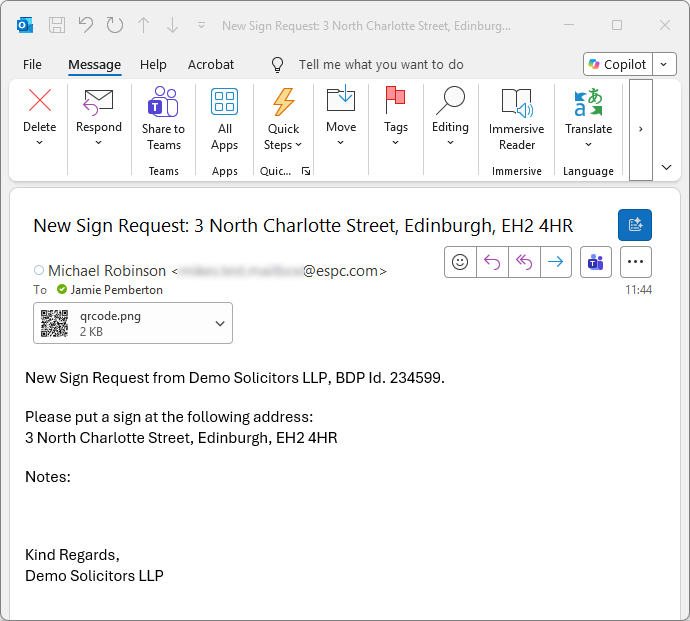
- QR codes: If QR codes are enabled for your firm, a copy of the QR code is automatically attached to the email sent to your for sale board operator.
Example of email to request a new for sale board to be erected with QR code attached but no notes.
 Features (Bullet Points)