
Matching connects your properties and your Applicants automatically – and gives you two tools to make sure the right people hear about the right properties at the right time.
There are two related but distinct features covered on this page:
- Matching – runs automatically in the background once set up, sending emails to applicants when a new property comes online that fits their search criteria.
- Find Buyer – a manual tool a User runs on demand from a property’s record, useful for re-targeting applicants at any point (for example, if a property has been on the market a while and could use a fresh push).
They’re often used together: Matching handles the initial email when a property goes live, and Find Buyer is used a few weeks later to re-prompt applicants if the property is still on the market.
A short video walking through the full process is available here: Matching Process Walkthrough
On this page:
- Setting up Matching (automated)
- Confirming an Applicant has been added to the Mailing List
- Setting up Search Criteria
- Using Find Buyer (manual)
- Using Property Match from an Applicant’s record
- Using Matching and Find Buyer together
Setting up Matching (automated)
Matching runs in the background once these business rules are set up, no one needs to do anything for it to work. It watches for two trigger events and acts on them automatically.
Speak to your System Administrator to set up these business rules:
| Trigger Event | Action | What to set up |
| Property Set Online | Run Property to Applicant Match | Add:
Do not add an “Email Preamble” here, this is picked up automatically from the Multi Property Email widget that is found at Configuration>Branding, Property Statuses should be left unchecked. |
| Applicant added to Mailing List | Send Email | Set this up as a standard email business rule, targeting the Applicant with a message confirming they’ve been added to your Matching service. Note: this trigger does not fire when a buyer signs up via your website – see the note below. |
| Applicant added to Mailing List | Run Applicant to Property Match | This is a simplified email business rule, where the target is the Applicant being added to the Mailing List, and it runs an immediate match against current live properties. |
Website sign-ups: if a buyer joins your Mailing List through a form on your website, the “Send Email” confirmation rule above won’t trigger automatically. Make sure your sign-up form is clear and unambiguous about what the applicant is signing up for, with no pre-populated fields or pre-ticked checkboxes.
See also: Multi-property email and Property Match email template placeholders to make sure your templates are ready before switching Matching on.
Confirming an Applicant has been added to the Mailing List

Matching and Find Buyer emails will only ever be sent to Applicants who have been successfully added to the Mailing List – this can happen manually (a User adds them) or through the Matching Form on your website, if your web developer has implemented it.
Check the envelope icon on the Applicant’s record:
- Red – not yet added to the Mailing List
- Green – added and eligible for Matching and Find Buyer emails
If you’ve set up the “Applicant added to Mailing List” business rule above, the Applicant will automatically receive a confirmation email at this point.
Setting up Search Criteria
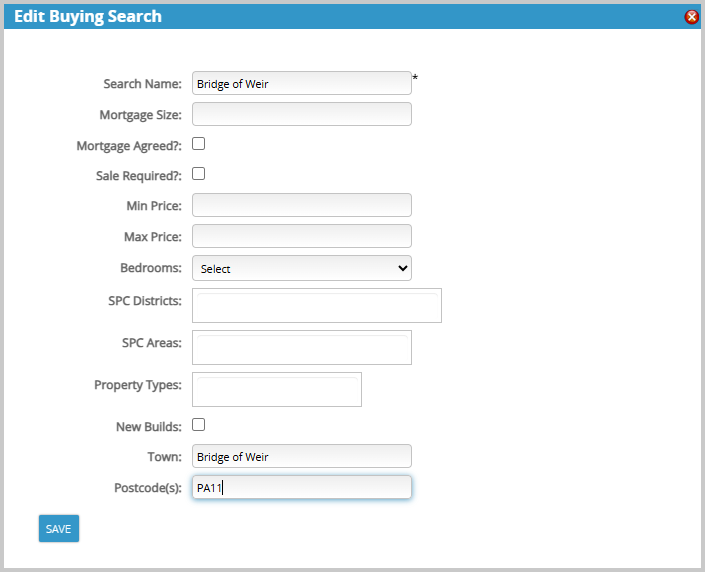
Being added to the Mailing List isn’t enough on its own- an Applicant also needs at least one search criteria saved against their record. Without this, BDP has nothing to match them against.
Information-only fields (don’t affect matching):
- Mortgage Size
- Mortgage Agreed
- Sale Required
Filter fields (these determine what matches):
- Min Price / Max Price (single)
- Bedrooms (single)
- SPC Districts (multiple)
- SPC Areas (single)
- Property Types (multiple)
- New Builds
- Town (multiple)
- Postcode(s) (multiple)
A match is only made when a property satisfies all of an Applicant’s filter fields at once. If you’re not seeing the matches you’d expect, check two things:
- that the criteria aren’t too narrow, and that
- you haven’t set filters that contradict each other (for example, a minimum price set higher than the maximum).
New Builds: the search criteria panel includes a New Builds toggle.
- Ticked – only new build properties are returned
- Unticked – both new build and re-sale properties are returned
This option is enabled by your BDP Administrator.
Tip: to add an Applicant who wants to hear about every property you list, create a search criteria with a name but leave every other field blank.
We strongly recommend setting up the “Applicant Added to Mailing List” automated email (see above) so Applicants get confirmation they’ve been added to your Buyers List.
Using Find Buyer (manual)
Find Buyer is a one-off, manual search you run yourself from a property’s record – useful any time you want to actively re-target applicants, rather than waiting for the automatic Matching process.
To run it, open the property and click the Find Buyers icon, either in the Tools menu or at the top of the screen.

This searches your Applicant database for everyone with a saved search matching that property and displays them in a slide-out panel.
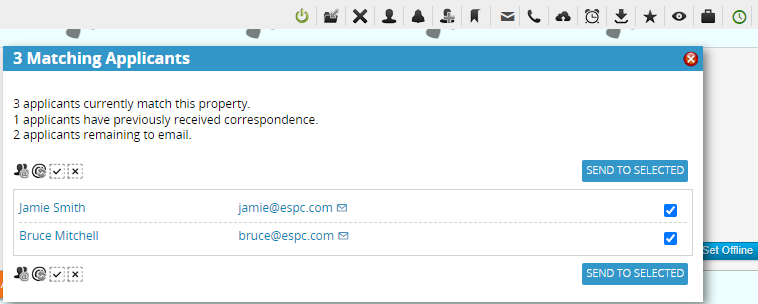
Tick the Applicants you want to include and click Send to Selected. This sends a property information email using the template your BDP Administrator has set up.
- Applicants who’ve already been emailed about this property are excluded by default.
- To include them anyway, click the @ icon (“Show previously contacted Applicants”) at the bottom of the panel.
- Only Applicants who’ve consented and supplied an email address are available for selection.
Using Property Match from an Applicant’s record
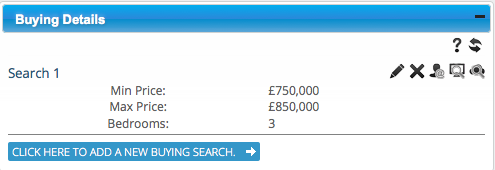
The Buying Details widget on an Applicant’s record is where search criteria are added. You can also add Buying Details from the Viewing appointment form when booking an Applicant in for a viewing, and an Applicant can have multiple searches saved.
Each saved search has a row of icons, from left to right:
- Edit the search
- Delete the search
- Run the search now and email the results to the Applicant
- View all matching properties on screen – includes online, offline, pre-market and sold properties, but not archived ones
- View matching properties on your website – public, online listings only*
*Only relevant if you’re using the BDP jQuery snippet to power listings on your website – not the API.
As with Matching and Find Buyer, automated emails will only send if the envelope icon in the Contact Details widget is green.
Using Matching and Find Buyer together
A common and effective approach:
- Matching sends the first email automatically the moment a property goes live, reaching every applicant with a fitting saved search – no manual work required.
- A few weeks later, if the property is still on the market, use Find Buyer from the property record to manually re-prompt Applicants. This can be performed several times over the lifetime of the property listing
This gives every new property an immediate, automatic first push, with the option to follow up manually if it’s proving harder to shift.
 Placeholders for Matching Preamble